

CentralReach Client Portal Sign-In
Help & Troubleshooting FAQ
Ally Families
Access your Client CentralReach Portal to do things like, sign timesheets or view your Client Learning Tree. Follow instructions below for login support

Help & Troubleshooting FAQ
Email addresses were migrated from Ally CentralReach to ACES CentralReach. Use the same email you had previously provided to Ally.
To access your account, log into CentralReach login with your standard username and password that you would have used for Ally. (If you have never logged in, use the First Time User Link available at login page)
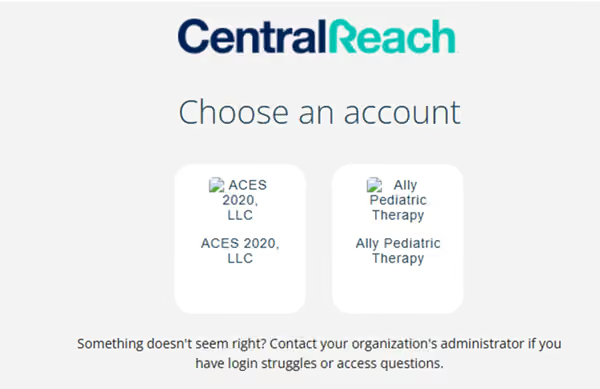
Upon attempt to login to CentralReach Client Portal you should now encounter a dual login option to select which organization you would like to view. Ally Pediatric will be your historical reference for service dates before 4/1/26, whereas ACES 2020 LLC will be your going forward reference for service dates of 4/1/26 and onward.
If you don't see two tiles and should, it's likely there's not a perfect match of name, date of birth, and email between the two accounts. Contact Client Onboarding for support.
Note: Ally CentralReach will have Client Files, however ACES CentralReach will not house your client files. Please reach out to Records@acesaba.com to request clinical documentation. The ACES Client Connect Portal will house ACES policy documentation and profile information.
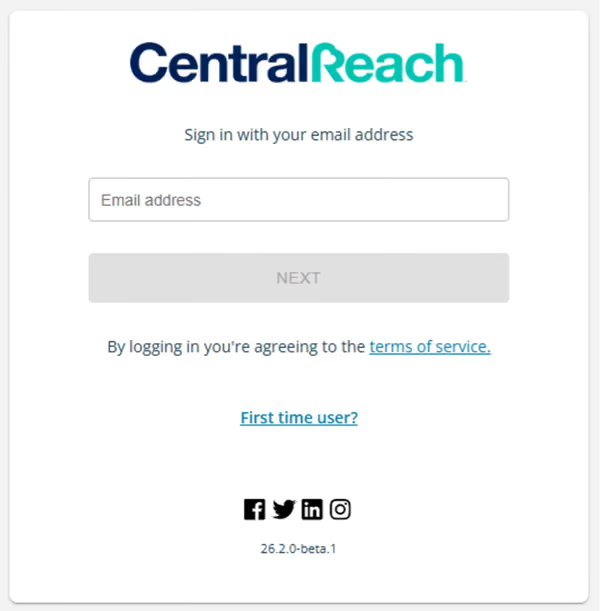
When logging in to the CentralReach Client Portal with SSO for the first time:
- Navigate to login.centralreach.com.
- Click First Time User?
- Select CentralReach.
- Enter your email address in the “Email Address" field and select the reCAPTCHA checkbox, then select Send Link.
- If the user exists within CentralReach, they will receive a "Set up your CentralReach Account" email. An email is not sent if the user does not exist within CentralReach.
- Select Confirm Access & Set Up Password in the email to navigate to the “Set Password” screen.
- When the password meets CentralReach’s requirements and is accepted, the page reloads and displays a hyperlinked “click here to continue” message that redirects users to the login screen.
- Upon returning to the login screen, log in with your email address and password. Users will be directed to the CentralReach Client Portal.
If you have logged into CentralReach previously and you do not remember your password, follow steps below:
- Navigate to login.centralreach.com.
- Enter your email address in the “Email Address" field and click Next
- Click Reset Password
- If that email is found, you will receive a “Set Password” email from CentralReach. Follow steps to reset password and reattempt login when complete.
If you're having trouble signing in with the email or phone number you used during registration, please contact our client onboarding team.
Phone: (855) 223-7123
- Monday – Friday, 7 AM – 6 PM PST
- Saturday, 7 AM – 3 PM PST
We’ll quickly help you access your CentralReach Client Portal.